
Event Booking
Available for Professional plans and above
The Organizer lets you create shareable booking pages where visitors can book time slots.
Key Concepts
- Planner — a shareable booking page with its own short URL
- Event Template — defines the duration, form fields, and styling of an event type
- Availability Slot — a specific date/time block when you're available
- Booking — a confirmed reservation from a visitor
Creating a Planner
- Go to Organizer → Create Planner
- Setup tab:
- Enter a short code, title, and description
- Upload a logo
- Set location (structured address fields) or meeting platform (Teams, Zoom, Google Meet, Webex, Skype, Other)
- Configure booking options: max bookings per visitor, allow multiple bookings
- Set up confirmation emails and reminder emails (with timing)
- Configure pricing if accepting payments (fee + currency)
- Set capacity per slot
- Schedule tab:
- Navigate weeks with prev/next buttons
- Desktop: 7-day grid with drag-and-drop templates from the sidebar. Click an empty cell to add with the default template. Default template shown with a star icon
- Mobile/Tablet: single-day view with day picker and template selector dropdowns. Tap the + Add button on any empty time slot to add using the selected template
- Choose interval granularity: 15, 30, or 60 minutes
- Use Quick Fill to bulk-add slots across multiple days (see below)
- Click Save
Quick Fill — bulk add slots
Quick Fill populates a whole date range in one go. Choose the template, date range (up to 90 days), start and end time, and the weekdays to include (Mon–Sun toggles). Two extra options let you shape the day around real life:
- Skip break / lunch — tick the switch, then set a Break from and Break to time (for example 12:00–13:00). Any appointment that would overlap that window is skipped and Quick Fill jumps the cursor straight to the end of the break, so your lunch stays free.
- Gap between appointments (min) — idle minutes inserted after each appointment. Handy when you need travel time between clients, buffer for notes, or a breather between back-to-back sessions. Accepts 0–240 minutes.
Quick Fill also respects what's already there — past slots and slots that overlap existing bookings are counted as skipped in the result toast. The last slot is never created if it would run past your end time.
Example
Template: 45 min. Range: 09:00–18:00. Break: 12:30–13:30. Gap: 15 min. Quick Fill produces 09:00 · 10:00 · 11:00 (each 45 min + 15 min gap), skips the break window, then resumes at 13:30 · 14:30 · 15:30 · 16:30, stopping before 18:00.
Public Booking Page
Share your planner URL (flnk.it/your-code) with visitors:
- They see available time slots grouped by date
- They select one or more slots (depending on settings)
- For paid events, they're redirected to Stripe Checkout
- For free events, the booking is confirmed immediately
- They fill in a booking form (fields configured per event template)
Managing Bookings
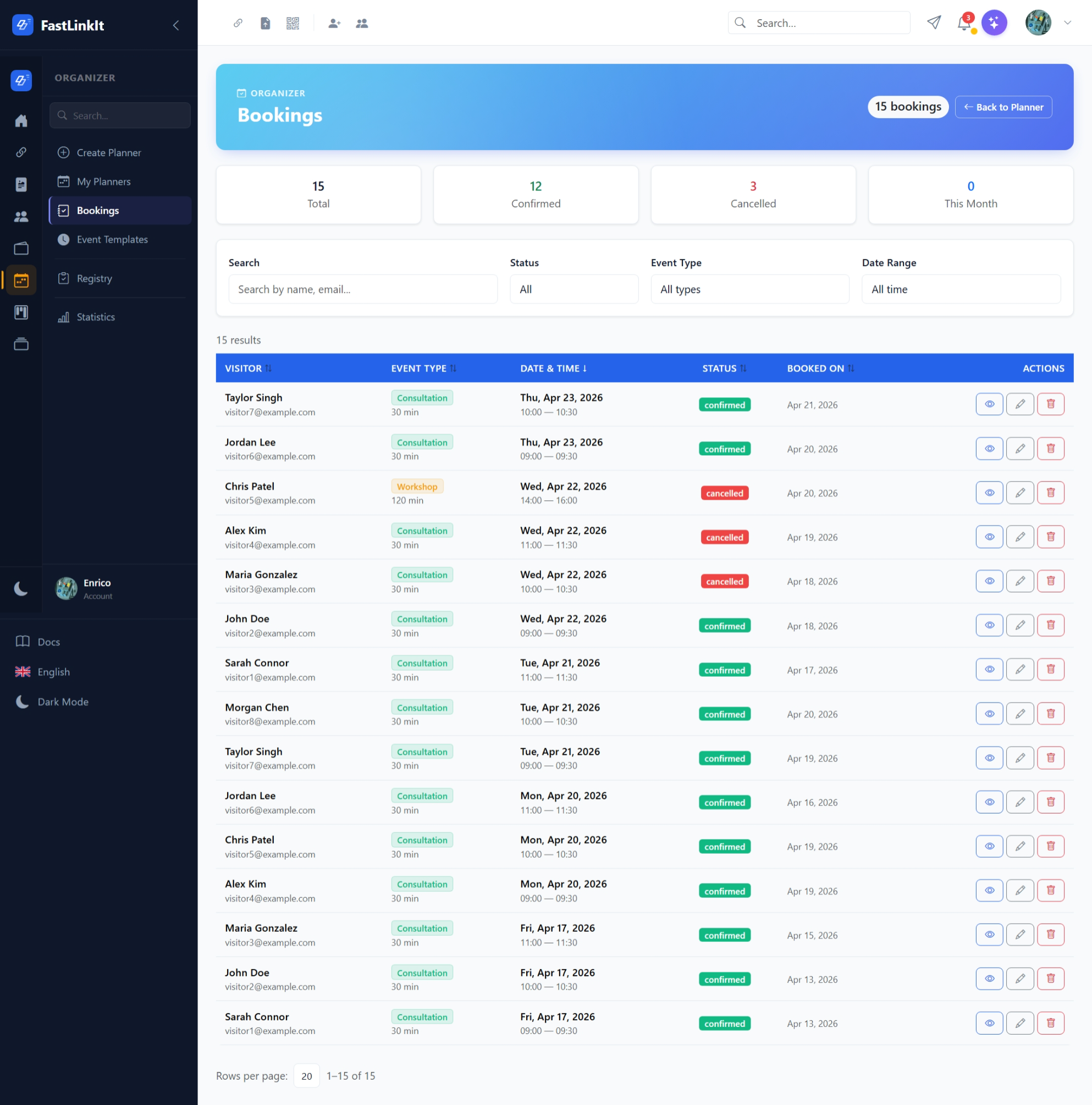
Go to Organizer → Bookings to:
- View all bookings with summary cards (total, confirmed, cancelled, this month)
- Filter by search, status, event type, and date range
- Edit booking details (status, visitor info)
- View booking details including custom field values